Your booking page
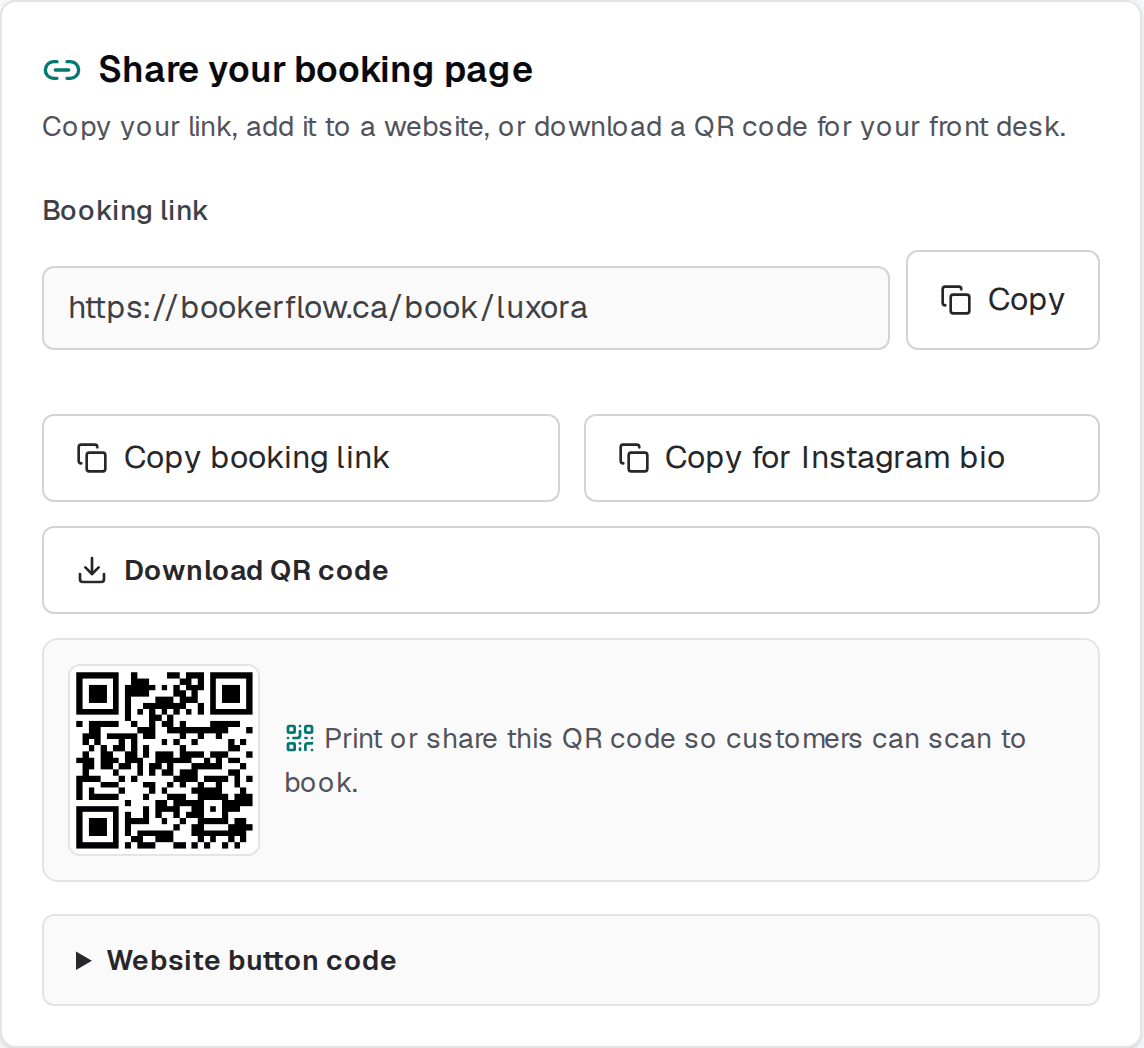
Share your booking page
Where to find your link, the places worth putting it, and what happens if you change your web address.
Your booking page has one job: to be somewhere your customers will actually find it. A booking page nobody links to takes no bookings. This page is about getting your link in front of people.
Where your link lives
Step 1: Open Booking page
In the dashboard menu, under Setup.
Step 2: Copy your link
The Copy button puts it on your clipboard, ready to paste anywhere. There is also a Copy for Instagram bio option formatted for that box specifically.
You can also open your live page any time with View booking page in the dashboard header — always worth doing after you change a setting, to see what customers see.
Where to put it
| Setting | What it does |
|---|---|
| Instagram or Facebook bio | The single highest-value spot for most salons and barbers. It is where people go when they have just decided to book. |
| Google Business Profile | Add it as your booking or appointment link. Customers searching your name see a booking button right in the search result. |
| Your website | As a button on every page, not buried on a contact page. See the website button code below. |
| Email signature | Costs nothing and works quietly on every message you already send. |
| Voicemail greeting | Read it aloud. It catches the calls you miss, which are the bookings you would otherwise lose entirely. |
| Text replies | When someone messages asking for a time, send the link rather than trading messages about availability. |
Replace “DM to book” wherever it appears
QR code and website button
Download QR code gives you an image you can print. It works well on a window sticker, a reception card, a price list, or the back of a loyalty card — anywhere a customer has their phone out and a moment to spare.
Website button code gives you a snippet to paste into your own site. If someone else maintains your website, send them that snippet and ask them to put it in the header — you do not need to understand the code to hand it over.
Changing your web address
The end of your link — the part after /book/ — is your booking web address, and you can change it on Settings → Profile.
Changing it breaks every link you have already shared
A good address is short, obviously yours, and easy to say out loud to someone on the phone. Your business name is almost always the right answer.
Once your link is out in the world, make sure the page behind it is actually taking bookings — Why a time slot isn't showing to customers covers what to check if it is not.
Related articles
Your first week: a setup checklist
The order to set things up in — services, hours, staff, booking page — and how to test before you share your link.
A tour of your dashboard
Where everything lives: the three menu groups, what each page is for, and how the menu changes on a phone.
Why a time slot isn't showing to customers
The seven things that hide a time slot, in the order to check them.
Still stuck?
Send us the details and we will take a look. Including your booking link and the date and time you are asking about gets you a faster answer.
Last reviewed July 30, 2026.