
Hours & time off
Set your opening hours and time off
Why hours belong to each staff member, how to set and copy a week, and how holidays and closures work.
Hours & time off is where you say when customers can book you. Everything on your booking page is built from what you set here, so it is worth getting right once rather than fighting it later.
Hours belong to people, not the business
This is the thing that surprises people. BookerFlow does not have one set of business opening hours — each staff member has their own. A time is offered to a customer when someone who can do that service is working.
If you work alone, that distinction does not matter: your hours are the business's hours. With a team it matters a great deal, because your shop can be open while nobody who does a particular treatment is in.
With more than one team member, the page shows a list down the side. Pick a person, then edit their week.
Setting someone's weekly hours
Step 1: Open Hours & time off and pick the person
With a single team member you go straight to their week. With several, choose a name from the list first — the summary under each name shows their current hours, so you can see who still needs setting up.
Step 2: Set the times for each day
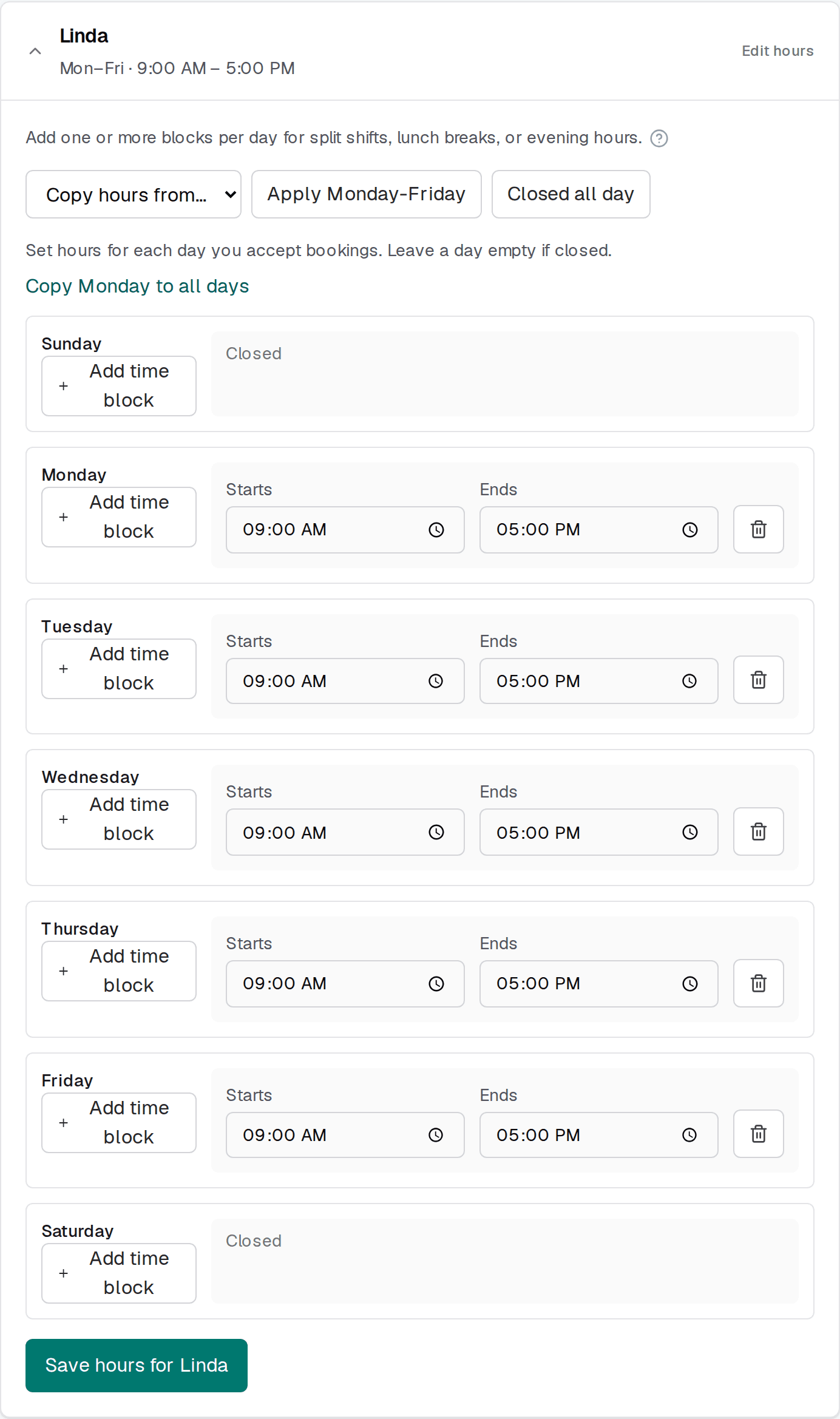
One row per day of the week. Enter the first time they can start an appointment and the last time they can still be working.
Step 3: Leave days off empty
A day with no hours saved is closed. That is correct if they genuinely do not work then — and it is the most common reason a day mysteriously offers nothing.
Step 4: Save
Existing appointments are never moved by a change here. Shortening your hours does not cancel anything already booked outside them.
Set the hours you want to be booked, not the hours you are present
Copying hours between staff
When several people work the same shifts, set one person up properly and copy their week across rather than retyping it. The editor offers the other team members as copy sources. Copy, then adjust the individual differences — it is quicker and makes fewer mistakes than starting each person from scratch.
Time off and one-off closures
Weekly hours describe your normal pattern. Time off handles the exceptions — holidays, a training day, a long lunch, a public holiday.
Blocked time is removed from booking immediately. It does not cancel appointments already in that window, so reschedule or cancel anything overlapping first — otherwise you are left with a booking sitting inside time you have marked unavailable.
Add closures the moment you know about them
Timezone
Your timezone lives on Settings → Profile, not on this page, but it governs everything here. The hours you enter are interpreted in that timezone, and so are the times customers see.
Set it to where you actually work and then leave it alone. Daylight saving is handled for you — your 9am stays 9am across the clock change.
If times look shifted by a consistent number of hours, the timezone is the first thing to check. If times are missing rather than wrong, work through Why a time slot isn't showing to customers.
Related articles
Why a time slot isn't showing to customers
The seven things that hide a time slot, in the order to check them.
Booking rules: notice, cancellation, and how far ahead
Every option on the Booking tab in Settings, what each one does to your booking page, and what to pick.
Your first week: a setup checklist
The order to set things up in — services, hours, staff, booking page — and how to test before you share your link.
Still stuck?
Send us the details and we will take a look. Including your booking link and the date and time you are asking about gets you a faster answer.
Last reviewed July 30, 2026.