
Daily operations
Find, filter, and export your appointments
The complete booking record: searching for one customer, narrowing with filters, and pulling it into a spreadsheet.
Appointments is the complete record — every booking you have ever taken, past and future, in one searchable list. Today and Calendar show you a slice of time; this page shows you everything.
What this page is for
Reach for it when you need to:
- Find a specific customer's booking, past or upcoming.
- Check what someone had done last time, and when.
- Review everything that was cancelled in a period.
- Pull your bookings into a spreadsheet.
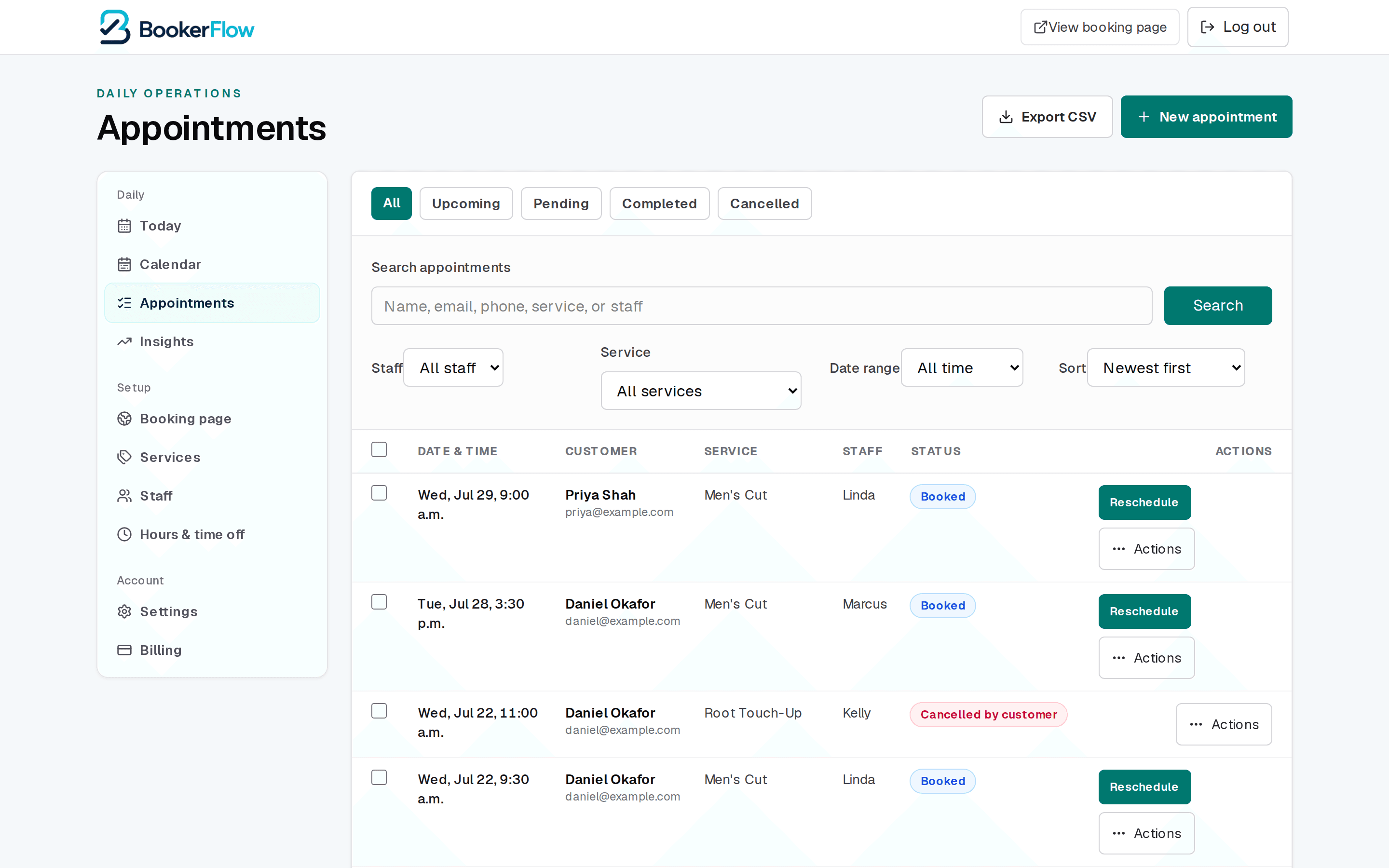
Finding one booking
Step 1: Type what you know into the search box
It matches on customer name, email, phone, service, or staff member — so any fragment you remember will do. A partial name is enough.
Step 2: Widen the date range if nothing appears
The range filter defaults to a window rather than all of history. If you are looking for something from last year, set it to All time.
Step 3: Open the booking to act on it
From the row you can reschedule directly, or open it for the full detail — notes, add-ons, contact details, and the rest of the actions.
Searching by phone number
The filters
| Setting | What it does |
|---|---|
| Status tabs | All, Upcoming, Pending, Completed, and Cancelled. The fastest way to answer “what is still to come?” or “what fell through?”. |
| Search | Free text across customer name, email, phone, service, and staff. |
| Staff | One team member's bookings only — useful for working out someone's week, or their share of cancellations. |
| Service | One service across all staff. Good for spotting which treatments actually sell. |
| Date range | The window to search within. Set it to All time when hunting for something old. |
| Sort | Newest or oldest first. |
Filters combine, so you can narrow to one staff member's cancelled bookings for a particular service last month — which is usually the fastest way to answer a question about a pattern rather than a person.
Exporting to a spreadsheet
Export CSV downloads the list as a spreadsheet file that opens in Excel, Numbers, or Google Sheets. The export respects whatever filters you have applied — so filter first, then export, and you get exactly the rows you want rather than everything.
Useful for handing figures to a bookkeeper, or for your own end-of-month review.
An export contains customer personal data
If a booking you expect is missing from the list entirely, that is usually a filter — but if a customer says they booked and nothing exists at all, work through Why a time slot isn't showing to customers.
Related articles
A tour of your dashboard
Where everything lives: the three menu groups, what each page is for, and how the menu changes on a phone.
Why a time slot isn't showing to customers
The seven things that hide a time slot, in the order to check them.
Who gets emailed when a booking comes in
The two team-alert settings, which addresses receive them, and how to pick a setup that does not bury you.
Still stuck?
Send us the details and we will take a look. Including your booking link and the date and time you are asking about gets you a faster answer.
Last reviewed July 30, 2026.